User manual
TalkSketch, screen by screen
Everything the app does, in the order you meet it. Screenshots use the built-in sample talk, which you can add to your own dashboard at any time.
1. What TalkSketch is
TalkSketch makes the notes you use while you speak, and helps you rehearse until you barely need them. One rule runs through it: notes are key words you glance at, never sentences you read. It builds them in two shapes, and the dashboard keeps both:
- A talk map for a talk you deliver from memory cues: a toast, a pitch, a keynote, a meeting you lead. One page with a strong open, three ideas that each carry a few abbreviated cues, and a strong close. You glance at a key word, look up, and speak. Rehearse times each section and fades the cues a notch per run, and remembers every run.
- Speaker notes when there are slides: the same method, one card per slide. Each card holds the beats you hit while the slide is up, a LAND line (the one thing to leave the audience with) and a NEXT line (the spoken bridge into the following slide). Imported from PowerPoint or PDF, drafted by the AI, presented from your phone.
The thinking behind both is on the method page.
2. Getting started
Sign in
Open talksketch.heromind.ai and choose Log in or Start free. You can sign in with Apple, with Google, or with your email and a six-digit code; no password is needed. Your documents are stored on your device first and mirrored to your account, so they follow you between your laptop and your phone.
Your first visit
A new account opens on a chooser that explains the two document kinds. Each has a Start button and a sample.
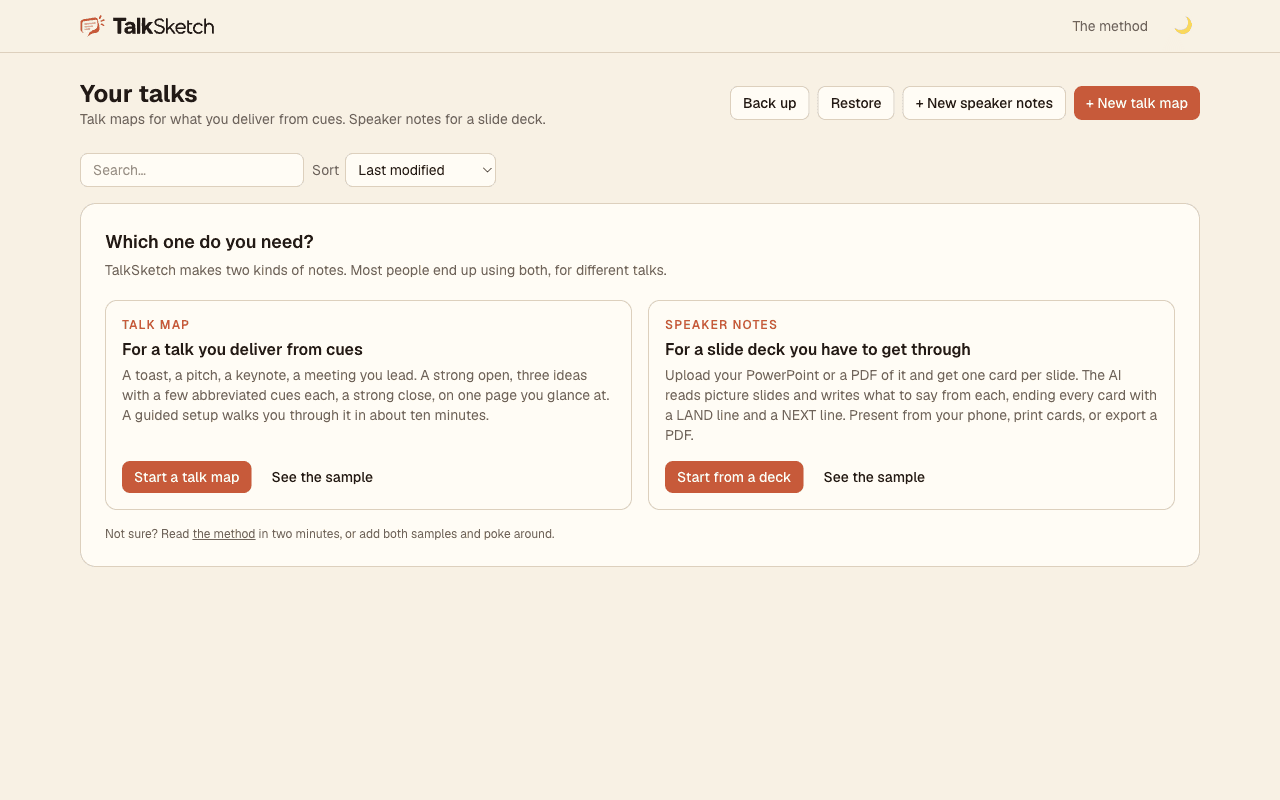
The dashboard
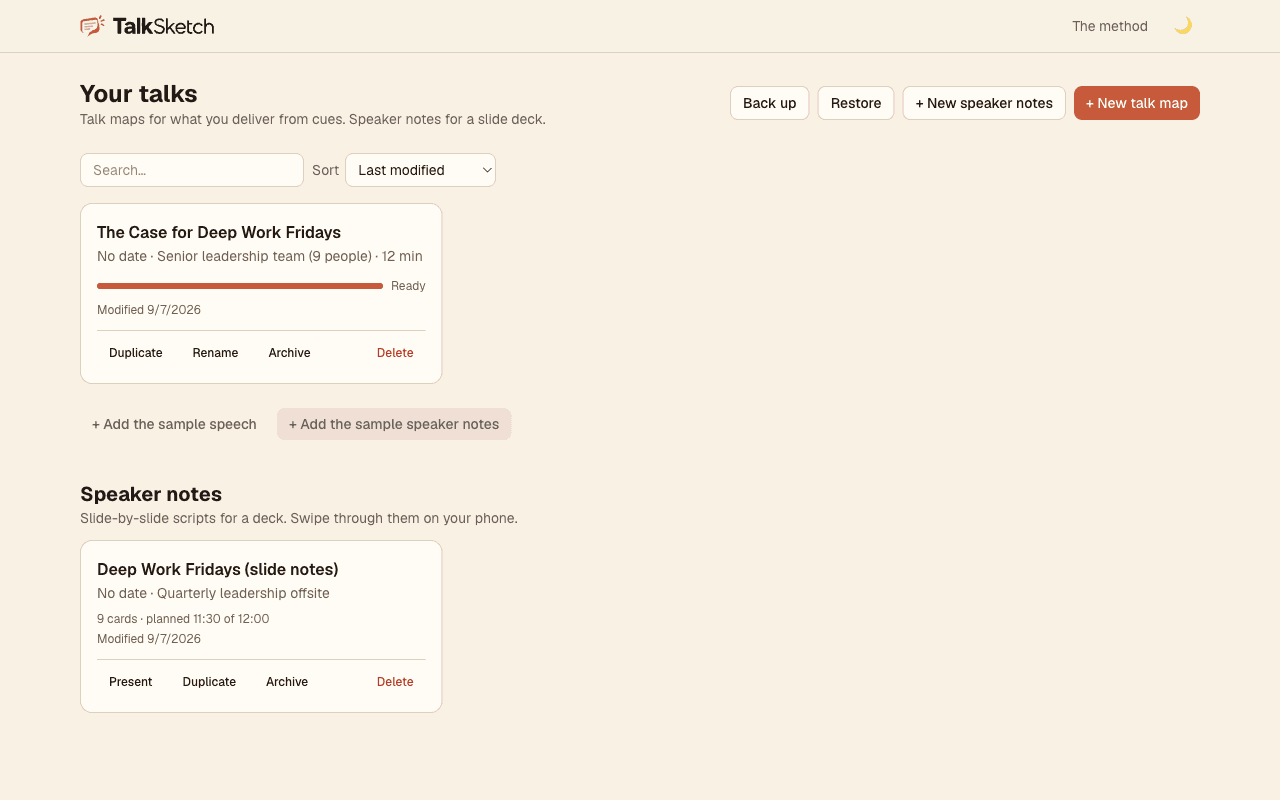
Every talk map and speaker-notes deck you own, plus anything shared with you, with a progress bar on each map and planned time on each deck. From the top bar: Back up exports everything as one JSON file, Restore brings it back on any device, + New speaker notes and + New talk map create documents. Search and sort are on the left; Archive keeps old talks out of the way without deleting them. Every card has Duplicate, Rename, Share, Archive and Delete.
3. Talk maps
Creating one
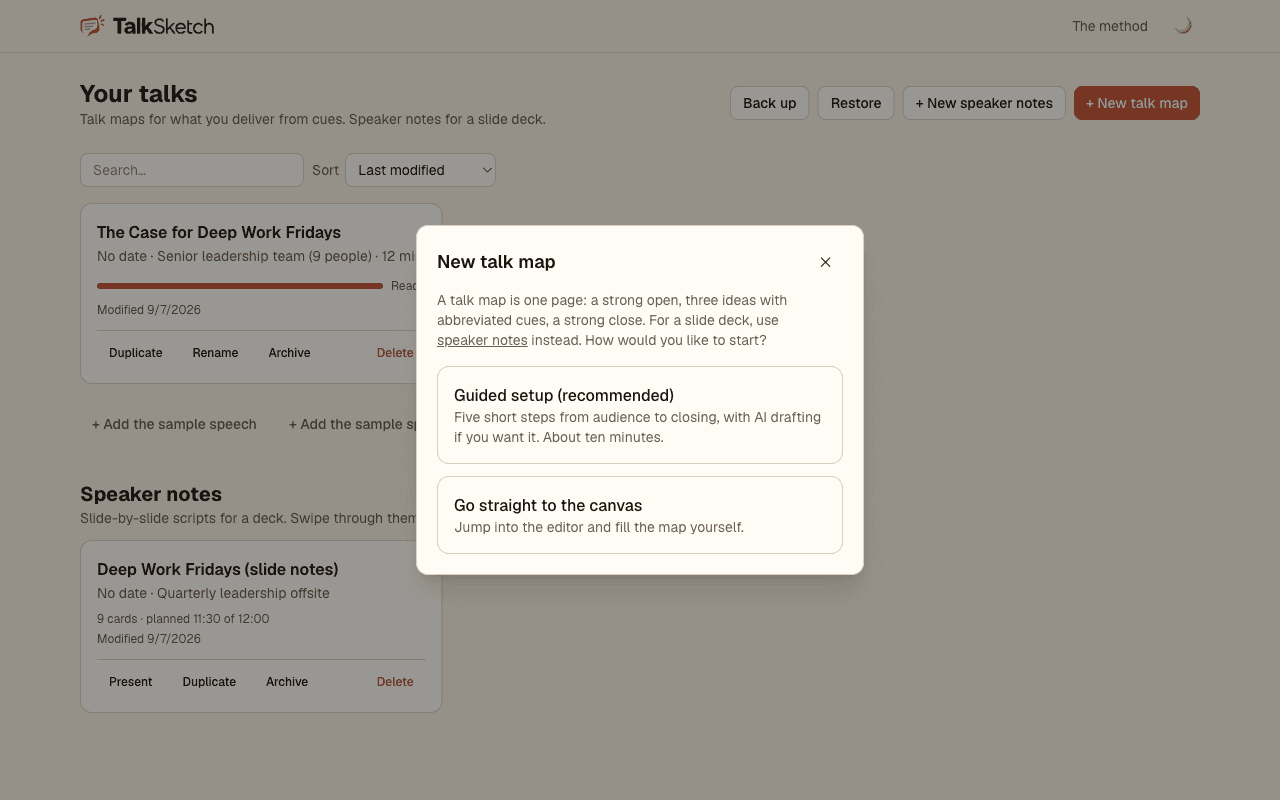
+ New talk map offers a guided setup or a blank map. The guided setup is the recommended route the first few times: five short steps in the order the method works.
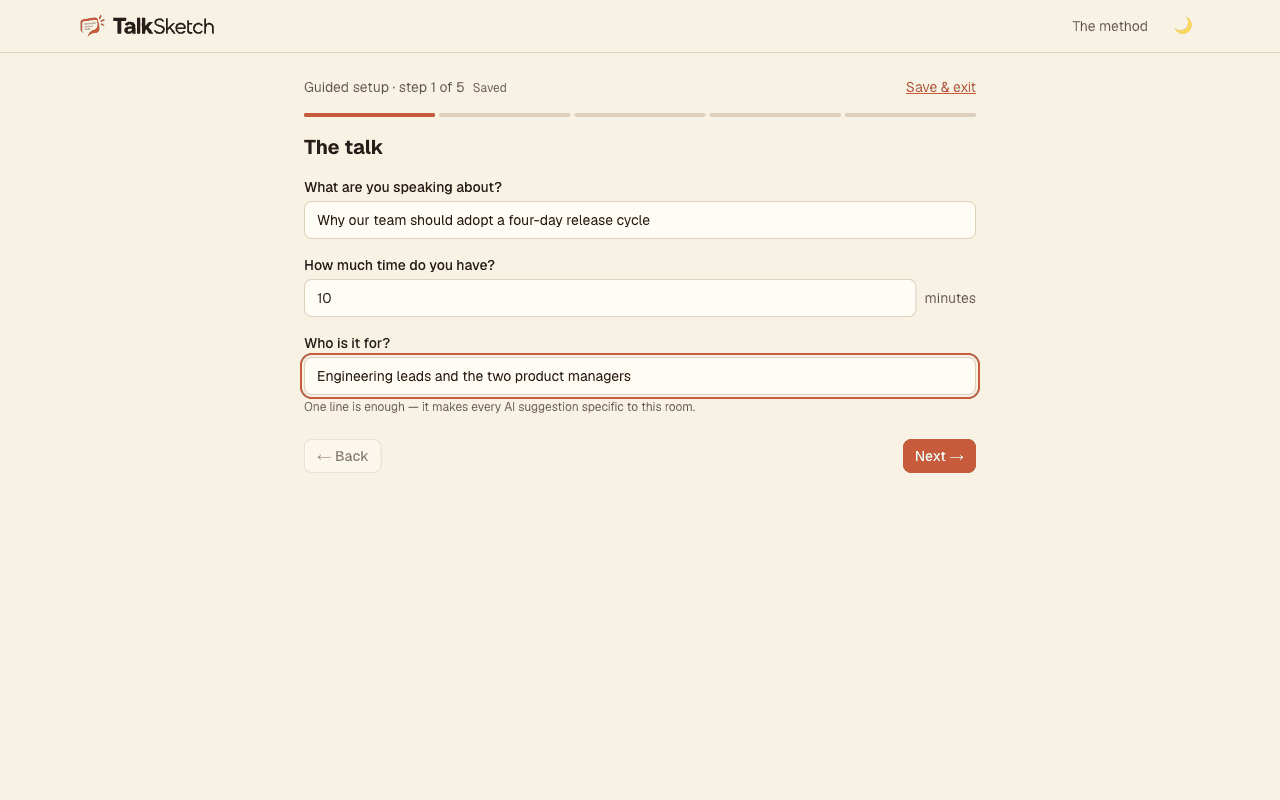
The guided setup
Step one is the talk itself: what it is about, how long you have, and who is in the room. Everything later is tailored to those three answers.
Step two is your three points. Type them if you know them. If you do not, open the scratchpad, dump your raw notes, and press Draft my three points: the AI proposes three from your notes and you tap Use on the ones you want. Nothing is added until you say so, and filled slots are never overwritten.
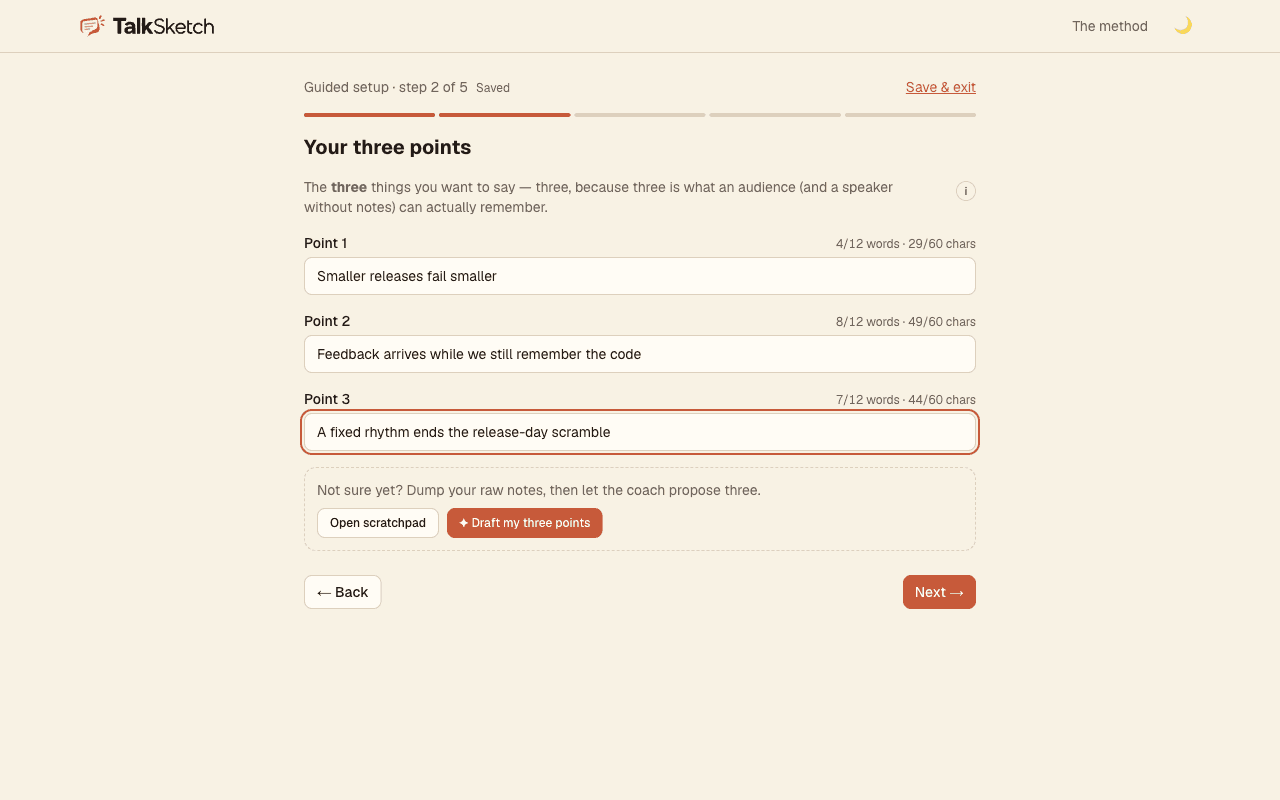
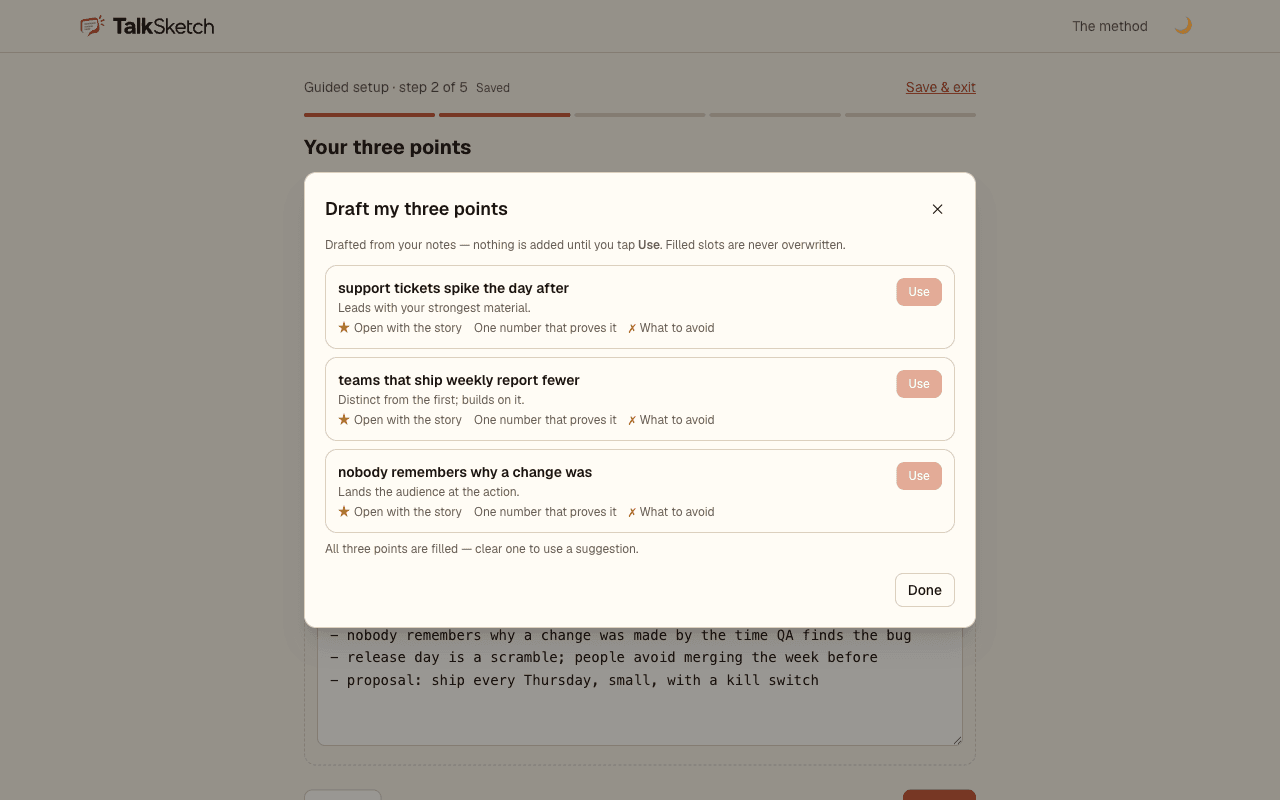
Steps three to five add cues under each point, the takeaway you want them to leave with, and your opening and closing. Each step has an info icon with the same coaching as the method page, right where the decision is made. Save & exit at any point; the map keeps whatever you have.
The map editor
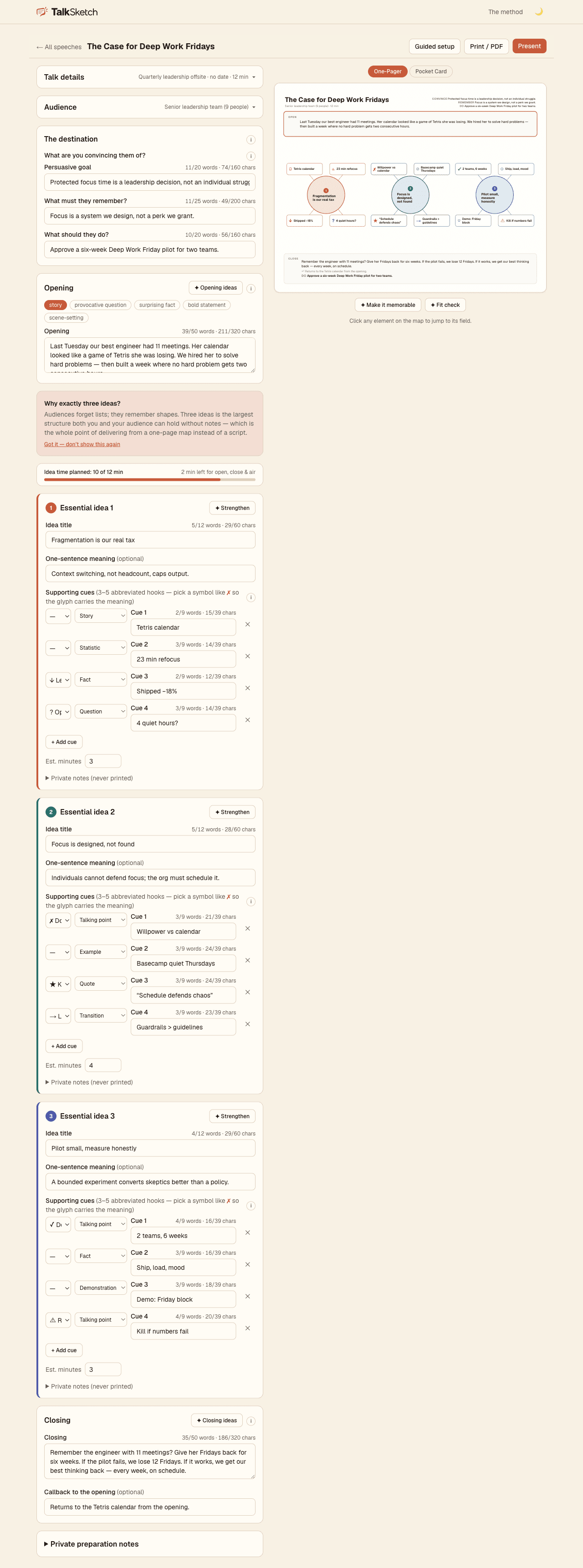
The editor is two halves. On the left, every field of the talk: details, audience, the destination (what to convince them of, remember, do), the opening with its style chips, three ideas with their cues, and the close. On the right, the map redraws as you type. Click any element on the map to jump to its field. The Pocket Card toggle shows the same map as a half-page card.
Every cue shows its word and character count against the limit, because a cue is a memory hook, not a sentence. When one runs over, it is flagged on the map and Abbreviate with AI offers three shorter versions. The symbol menu on each cue lets a glyph carry the verb: a cross for don't, a tick for do, an arrow for leads to, a star for the key point.
Before you walk on
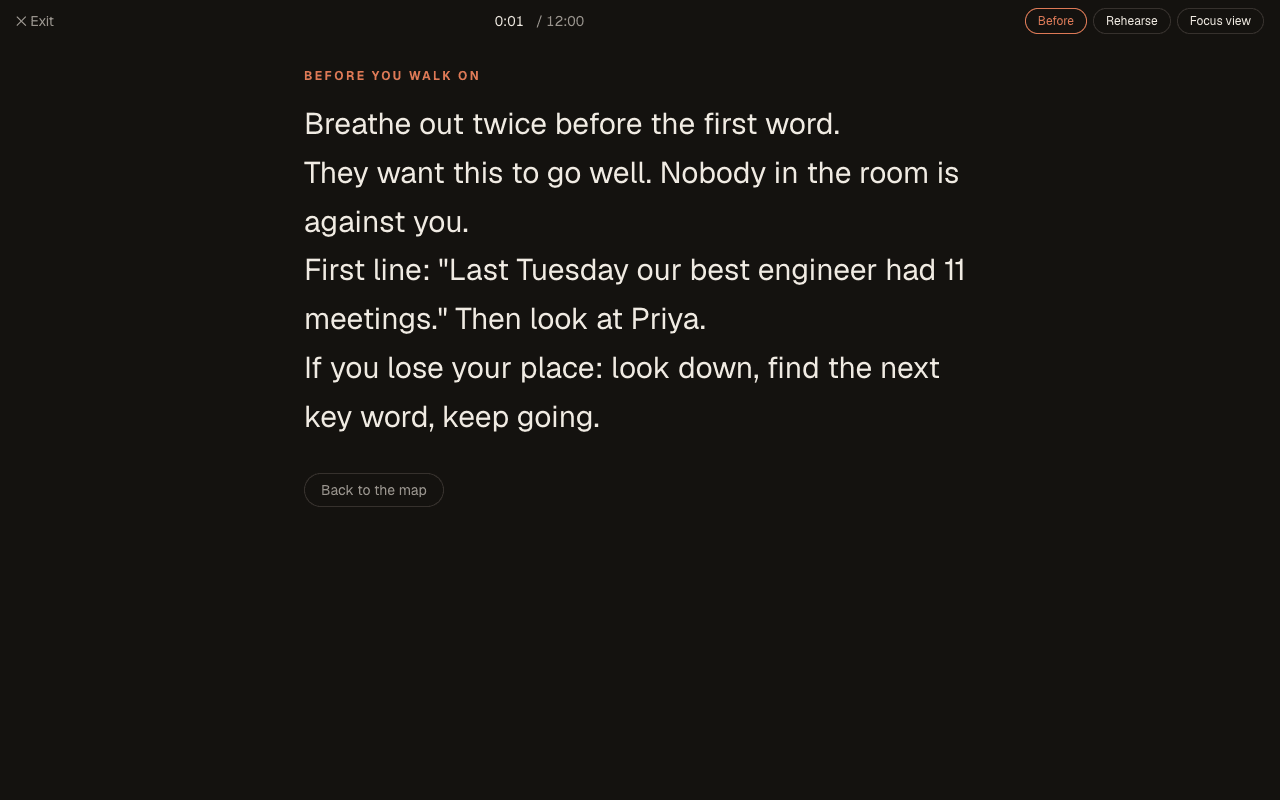
Under the close is a field for your pre-talk card: the thing you read at the door. Your opening ritual, the line that settles your nerves, who you look at first, what to do when you lose your place. It is never on the map; the presenter shows it when you press Before.
Rehearsal history
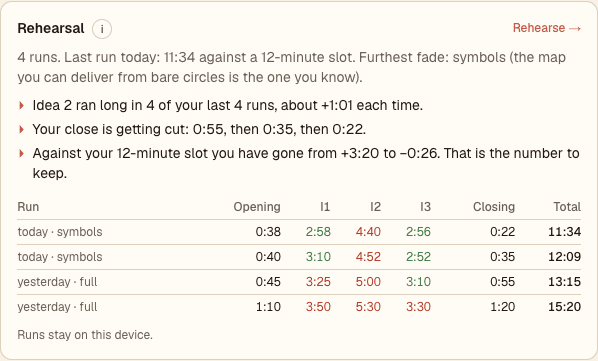
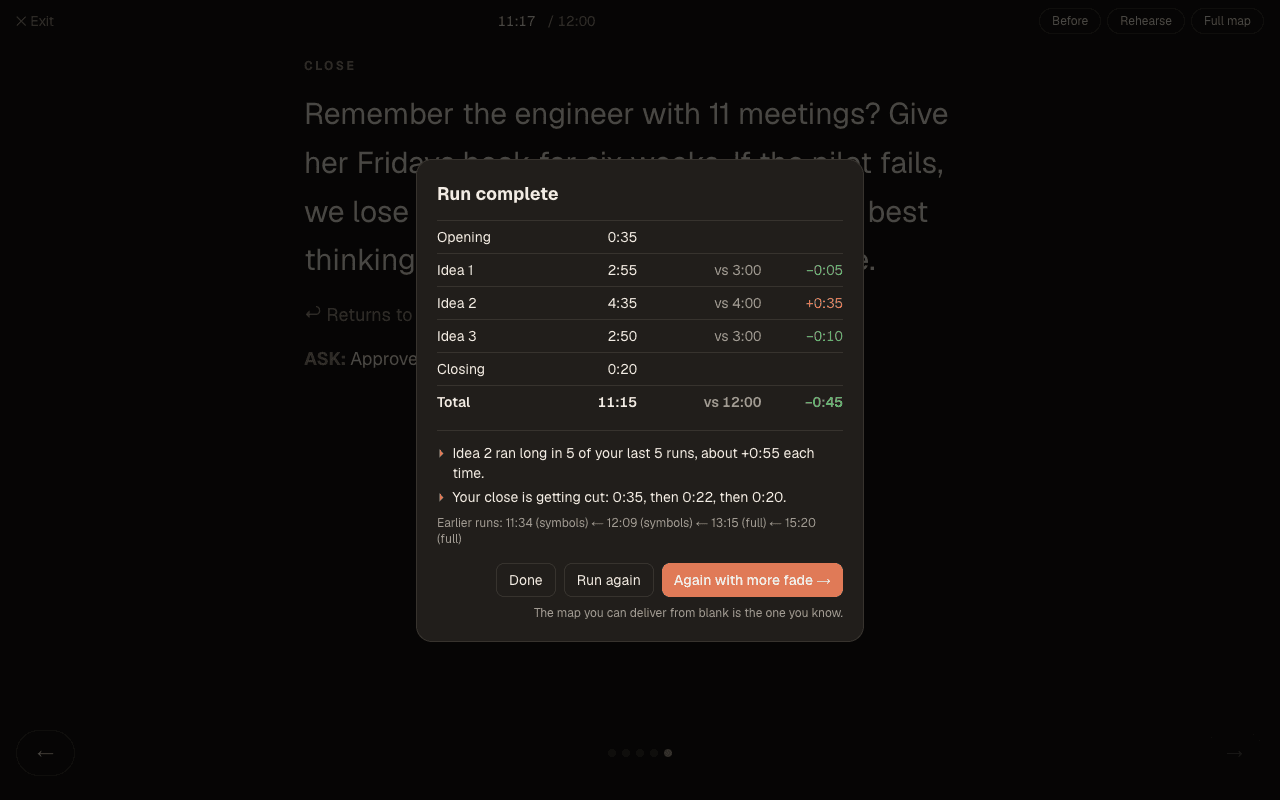
Under the map preview, the Rehearsal panel shows what your runs are telling you: how many runs, how far the fade got, a table of the last five with each section coloured against its target, and the sentences that matter, such as “Idea 2 ran long in 3 of your last 4 runs, about +0:40 each time.” Cut a cue there, at your desk.
Coaching
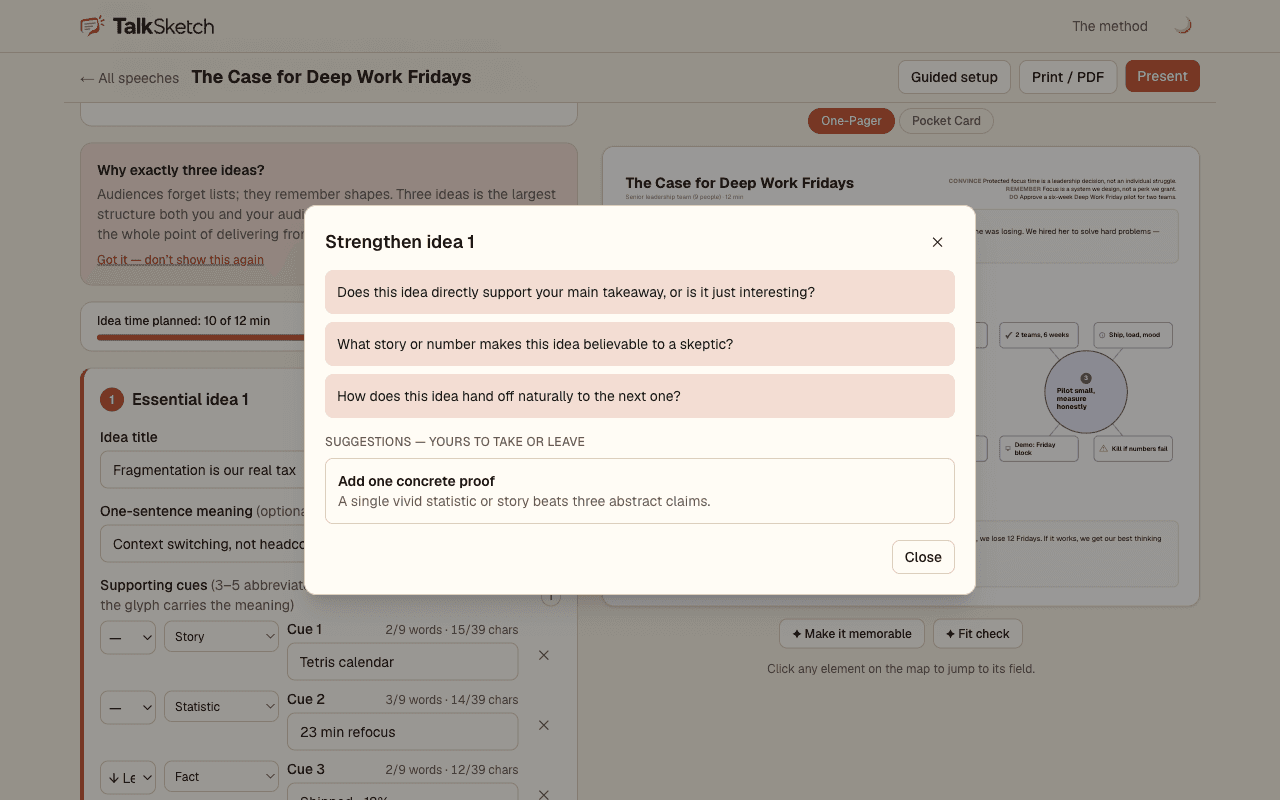
The ✦ buttons ask the AI for coaching, never for a script: Opening ideas, Strengthen on each idea, Make it memorable and Fit check under the map. Each answer is questions and optional suggestions that you take or leave.
Print and PDF
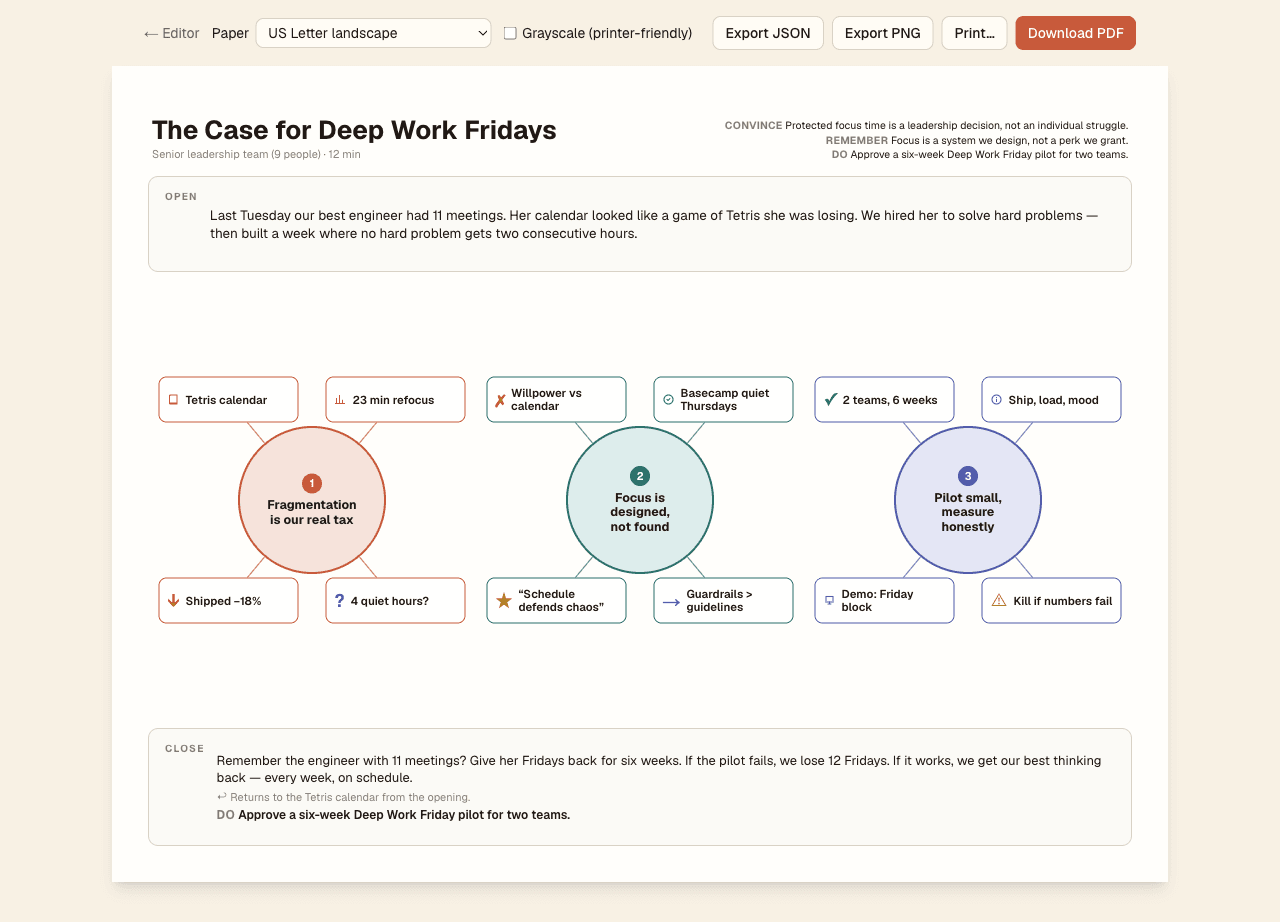
Print / PDF lays the map out on one page. From there: Print…, Download PDF (Pro), Export PNG, and Export JSON for a copy of the data. The pocket card prints two to a page.
4. Speaker notes
Starting from a deck
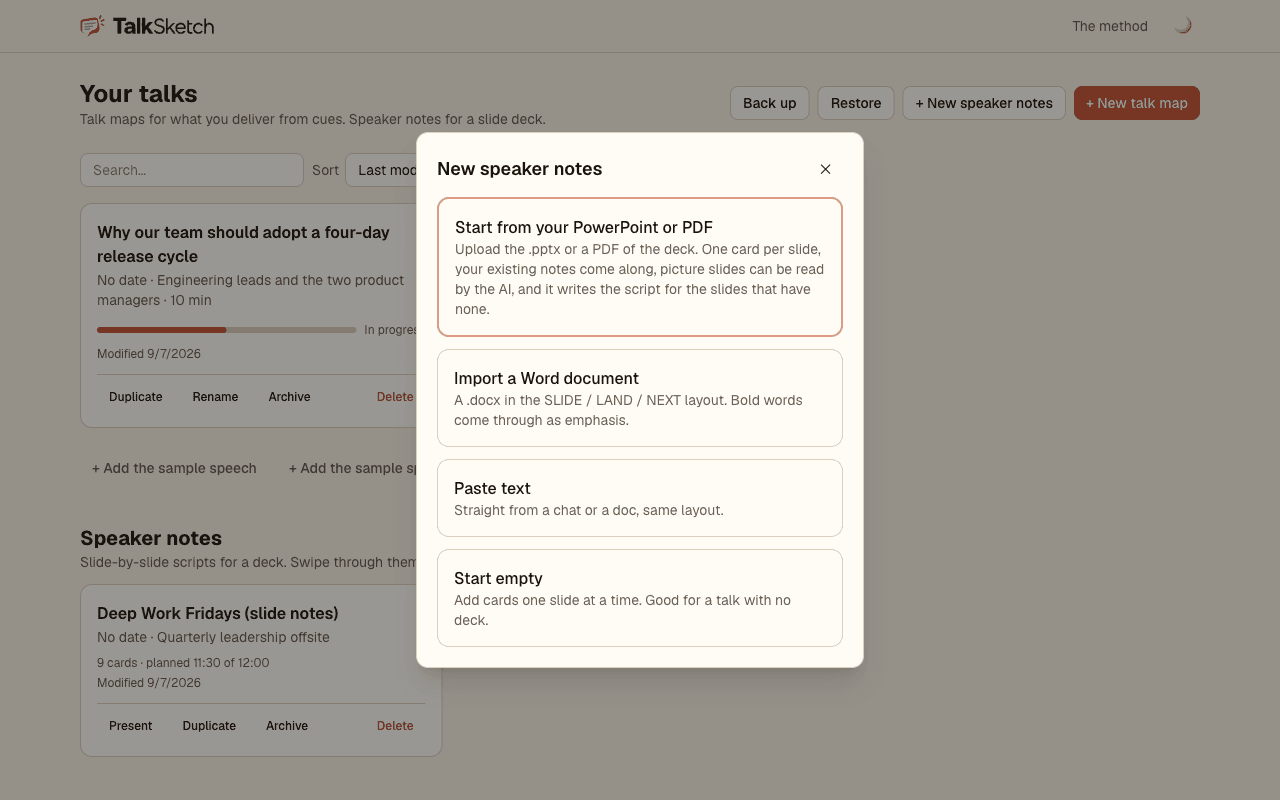
+ New speaker notes opens the import. Start from your PowerPoint or PDF is the usual route: upload the .pptx or a PDF export of any deck and every slide becomes a card. What happens next depends on the deck:
- Slides that already have speaker notes keep them as the script. LAND and NEXT lines inside those notes go to their own fields.
- Slides with text on them keep that text on the card so the AI can write the script from it.
- Slides that are pictures with no text layer (an exported deck, a scan) can be read by the AI: one button, ten slides per request, and titles appear in the list as each batch lands.
When cards have slide text but no script, the last step offers Create and write all scripts with AI, which opens the editor and drafts every card in order with a progress bar. Or create now and write later. The file never leaves your browser; only what you ask the AI to read or write is sent to it.
The other routes: a Word document or pasted text in the SLIDE / LAND / NEXT layout, or an empty deck you fill card by card.
The notes editor
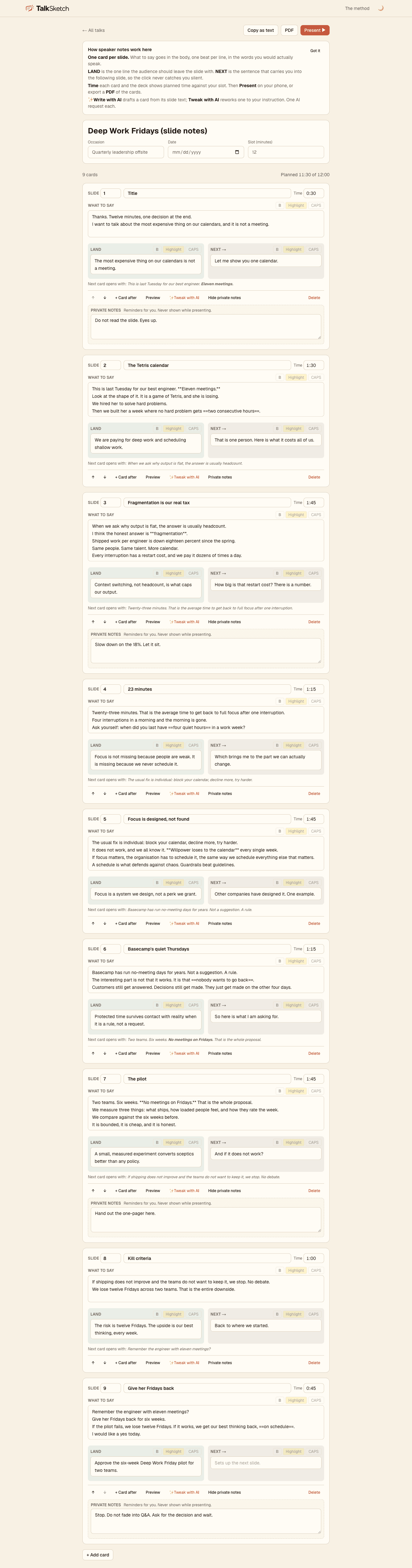
Deck details at the top: occasion, date, and the slot in minutes. The deck shows planned time against the slot and turns amber, then red, as you run over. Below, one panel per card:
- Slide and title, and a time target such as 1:30.
- What to say: the beats you will hit while the slide is up, one per line, short enough to take in at a glance. This is not a script; if a line is a full sentence you will read it, and the audience will hear that. Select a word for Bold (a word to hit), Highlight (a phrase to remember) or CAPS.
- LAND and NEXT. The editor shows what the next card opens with under each NEXT line so the bridge lands.
- ✨ Write with AI drafts a card from its slide text; ✨ Tweak with AI reworks a written card to your instruction (“cut it to 45 seconds”, “land on the cost point”) and shows the proposal beside the original before you apply it. One AI request each.
- Private notes: reminders for you, or the slide text from the import. Never shown while presenting.
- Move cards up or down, insert a card after, preview one card as the phone will show it, delete.
Getting the notes out
Present opens the phone presenter. PDF exports the cards fit to the page (Pro) or opens the print view. Copy as text puts the whole deck on the clipboard in the SLIDE / LAND / NEXT layout, which pastes back in cleanly.
5. Presenting from your phone
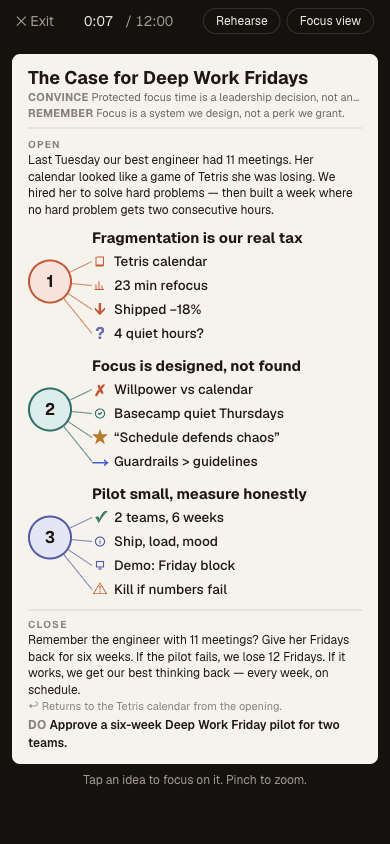
Both document kinds have a presenter built for a phone held in one hand. Open the talk on your phone (the app installs to the home screen from Safari's Share menu, or use the iOS app) and press Present.
Speaker notes
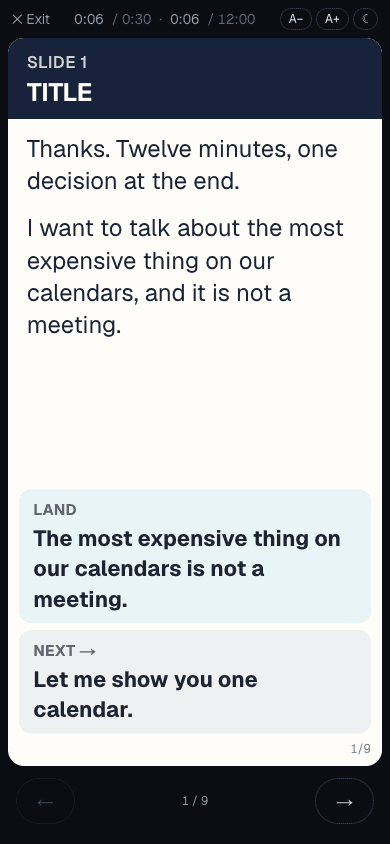
One card per screen: slide number and title in the band, the body large, LAND and NEXT pinned at the foot. Swipe or use the arrows to move; the clock shows time on this card against its target and time overall against the slot. A− and A+ change the type size and the card refits itself. The moon toggles a dark card for a dark room.
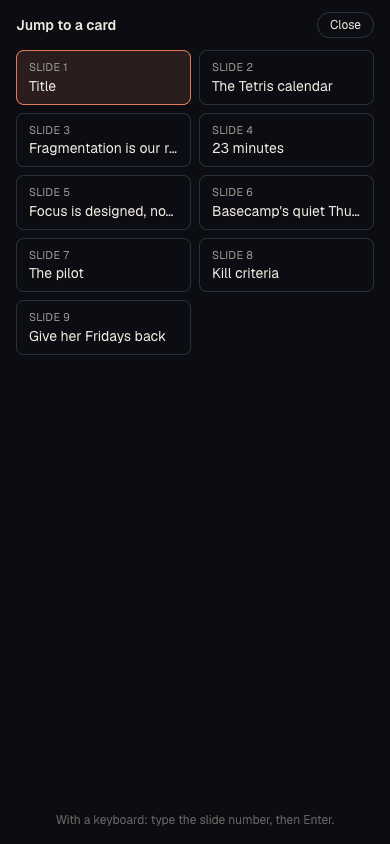
Drifted from the deck? Tap the card counter at the foot to open a grid of every card and jump to the right one. With a keyboard, type the slide number and press Enter, the same as PowerPoint.
Talk maps
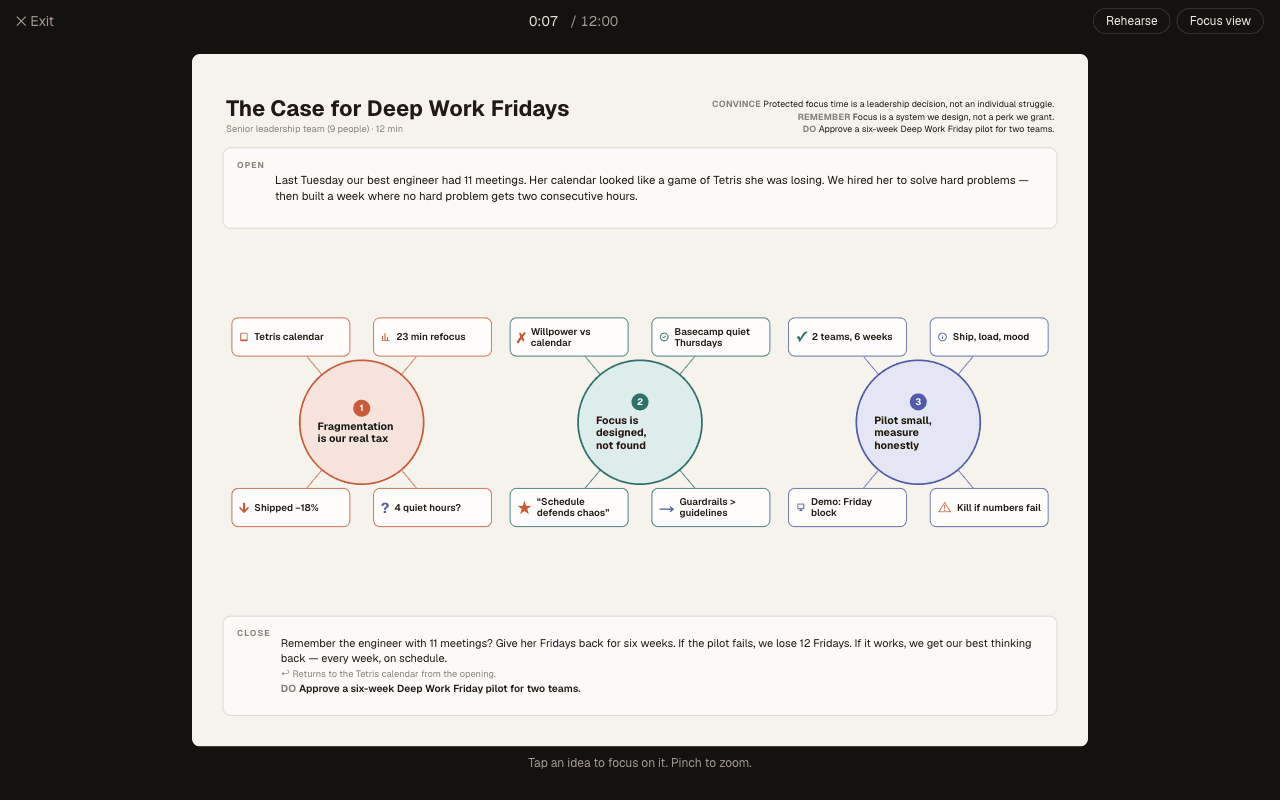
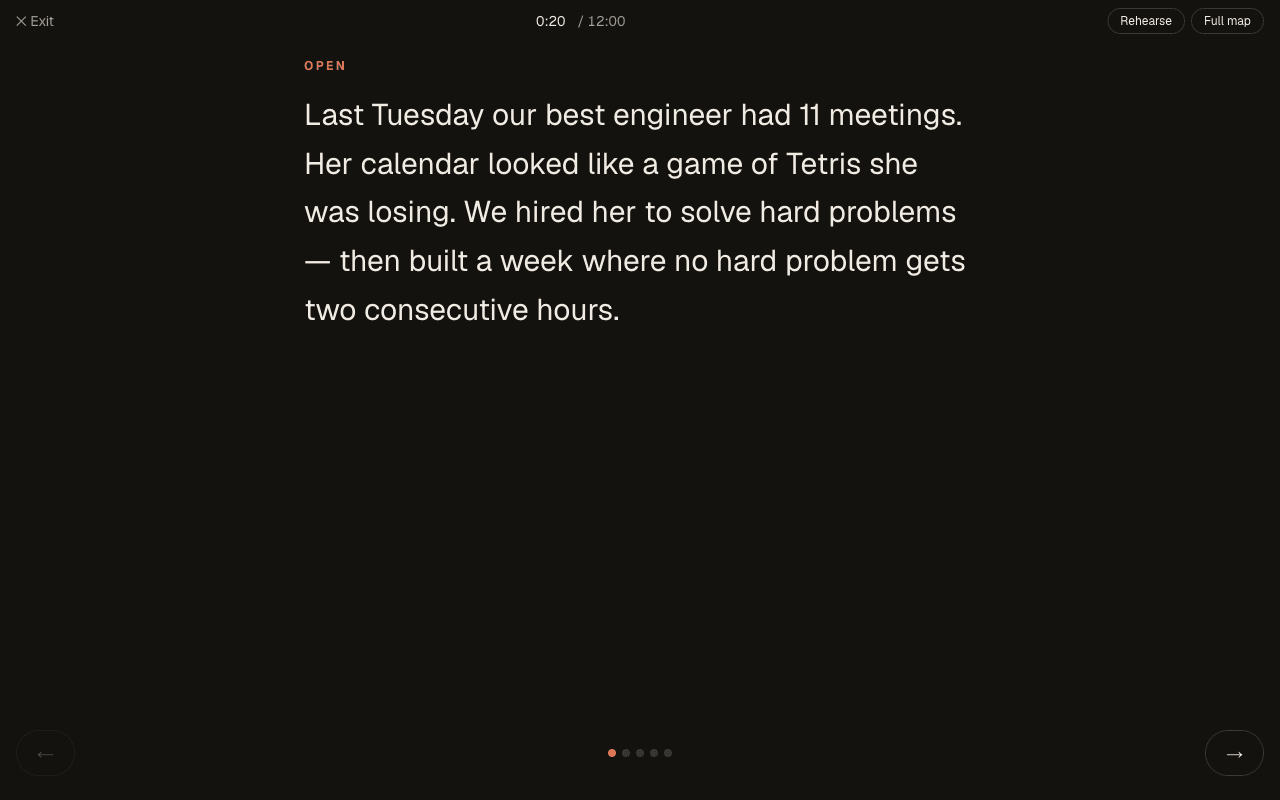
The map presenter shows the whole page with a running clock (the pocket card on a phone). Focus view steps through the talk one element at a time, open, each idea with its cues, close, in large type; tap an idea on the map to jump there. Before shows your pre-talk card.
Rehearse is where the method is learned. Press it and the run starts in Focus view: the clock times each section as you move through it. Press Finish run and the summary shows every section against its target, the total against your slot, and, from the second run on, what the runs are telling you: which idea keeps running long and by about how much, whether your close is getting cut, whether the total is converging on the slot. Choose Again with more fade and the cue text goes down a notch: Full shows the map, Symbols hides each cue behind its symbol (tap to peek), Bare leaves three circles and your open and close. The map you can deliver from bare circles is the one you know.
Every run is kept: the last 3 on Free, on that device; the last 30 on Pro, on every device you sign in on.
On stage
What the presenter does for you on the day, and the two things it cannot:
- The screen stays awake while the presenter is open, on the web app and in the iOS app, without touching your phone's auto-lock setting.
- Clickers work. A Bluetooth presentation clicker sends the same keys as a keyboard: Page Down, Page Up, the arrows and space all move between cards or elements. Pair it with the phone or the laptop the presenter is open on.
- It works offline. Once a talk has been opened on the device, the presenter needs no connection. Open it once on the Wi-Fi you trust before you walk on.
- Lost your place: the card counter jumps to any slide; on a map, tap an idea to focus on it.
- Turn on Do Not Disturb yourself. A web page cannot silence your phone. Put it in Do Not Disturb, or the Focus mode of your choice, before you open the presenter. Same for a laptop at a lectern.
- Volume buttons do not advance. Browsers do not let a page see them. Use the screen, a clicker, or a keyboard.
6. AI: what is included and how it works
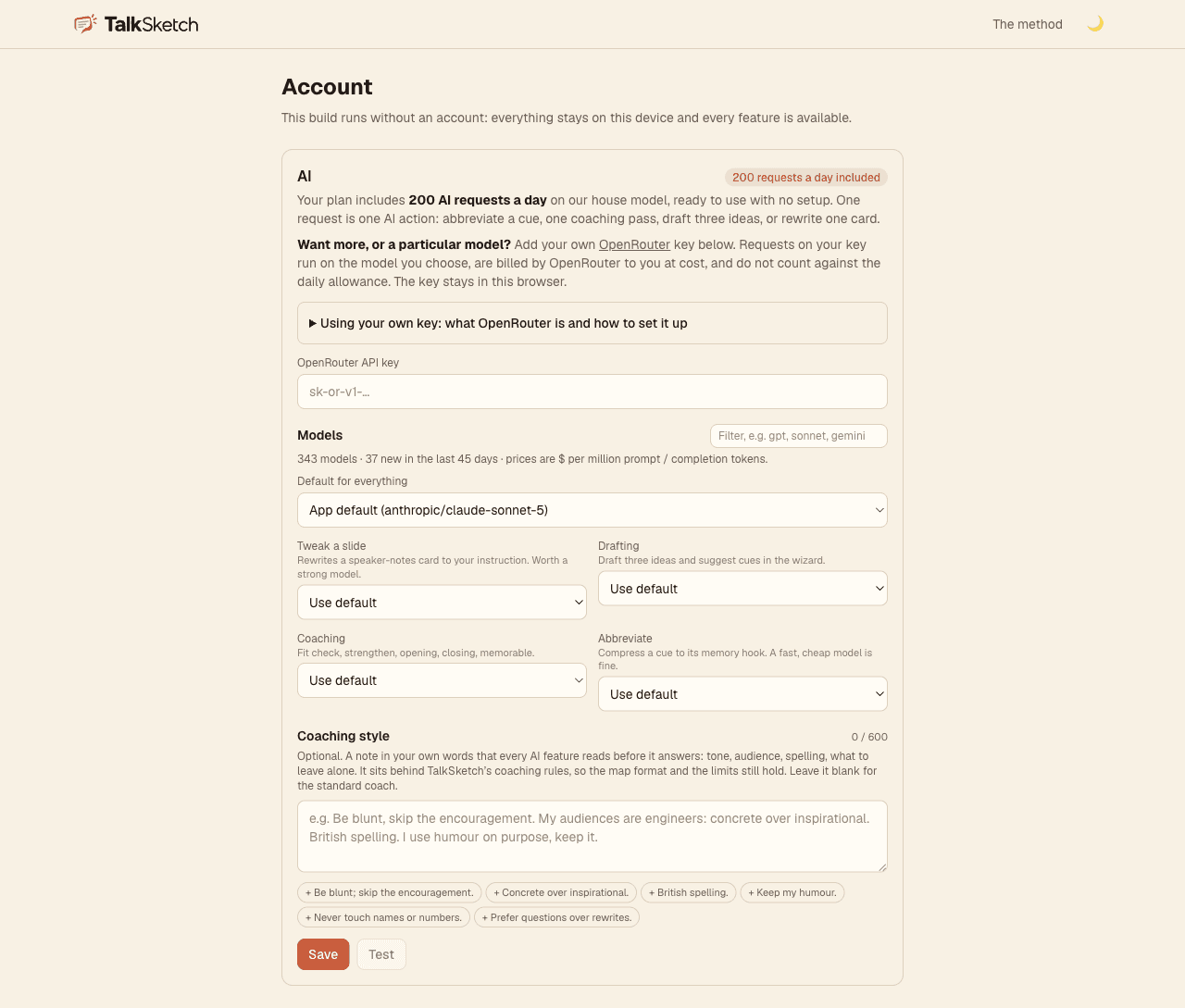
Every account includes a daily allowance of AI requests: 10 on Free and 200 on Pro, ready to use with no setup. One request is one action: abbreviate a cue, one coaching pass, draft three points, name a deck's cards, read ten picture slides, or write or tweak one card. The AI coaches and drafts; it never changes anything you did not ask for, and nothing you write is used to train models.
On the Account page you can add your own OpenRouter key. Requests on your key are unlimited, run on whichever model you pick per feature, and are billed by OpenRouter to you at cost. This is for heavy users and people who want a specific model; most people never need it. The Coaching style box is a note in your own words that every AI feature reads first: tone, audience, spelling, what to leave alone.
7. Sharing, backup and archive
- Share (Pro) on any card invites a person by email as a viewer or editor, or creates a read-only link. Remove either at any time from the same dialog. Shared documents appear on the other person's dashboard with a badge.
- Back up downloads every document as one JSON file; Restore reads it back, on any device. Keep one before a big talk.
- Archive hides a finished talk; the Archived filter brings it back. Delete is permanent.
8. Account, plans and billing
The Account page shows your plan, today's AI requests, and the plans side by side. Free is for finding out whether the method is yours: five documents, the map, Focus view, the pocket card, Rehearse with fading, the phone presenter, and the daily AI allowance. Pro is for people who speak every month: the manager with a monthly review, the salesperson pitching weekly, the coach with clients, the exec. It removes the document limit, keeps the last thirty rehearsal runs on every device, adds sharing and PDF export, and raises the allowance; it starts with a seven-day trial, then $8 a month or $60 a year.
The talk pass is for the one talk that matters: thirty days of everything in Pro for $12, paid once. Nothing renews and there is nothing to cancel. If Pro is already running, the pass adds its days to the end.
Manage billing opens the portal to change your card or cancel; Pro stays on until the end of the period you paid for. Delete account removes your documents, rehearsal history, shares and sign-in record permanently.
9. Questions and problems
- The AI button says I have used today's requests.
- The allowance resets at midnight UTC. Pro raises it to 200 a day; your own OpenRouter key removes it.
- My imported deck has no titles or scripts.
- The slides are probably pictures. In the import preview press Read them with AI, then choose Create and write with AI. If the deck has neither text nor pictures the app can read, export it as a PDF and upload that.
- Present shows “No script yet” on a card.
- That card's body is empty. Open the editor and press ✨ Write with AI, or type what you will say.
- Will my clicker work?
- Yes, if it pairs with the device the presenter is open on. Clickers send Page Down and Page Up, which the presenter reads. Volume buttons do not work, because a web page cannot see them.
- I swiped past the wrong slide.
- Tap the card counter at the foot of the presenter and pick the card. On a keyboard, type the slide number and press Enter.
- Where did my rehearsal runs go?
- Runs are kept on the device you rehearsed on; on Pro they are also synced, so the phone shows what the laptop recorded. Free shows the last three runs on that device.
- Does it work offline?
- Once a talk has been opened on a device, the presenter and editor work without a connection; changes sync when you are back online. AI features need a connection.
- Where is my data?
- On your device first, mirrored to your account. Back up gives you a copy at any time. Deleting the account removes everything.
- Something else.
- Email support@heromind.ai.